Published by Adrian Vogel · Reading time: approx. 12 minutes · Last updated: October 2026
Before you start: This guide is not legal advice. What you note in OWNAMIC under "Intended for" is a personal wish, not a will. If you want to settle something in a binding way, you need a will. It must follow the form the law requires where you live. A notary or a lawyer specialising in inheritance law can help.
In short:
- You end up with your things sorted and key pieces given a story.
- You need a talk with your family and your phone.
- Plan weeks and months, about one room per weekend.
- OWNAMIC does not decide for you and does not replace a will.
Why it is worth deciding during your lifetime what happens to your things is covered in Döstädning. That article is about the why. The market value can still be worked out later. The meaning, however, disappears with the person. This one is the practical part. It shows the order to go in, what to click in OWNAMIC and where the limits are.
What you should know about Swedish death cleaning
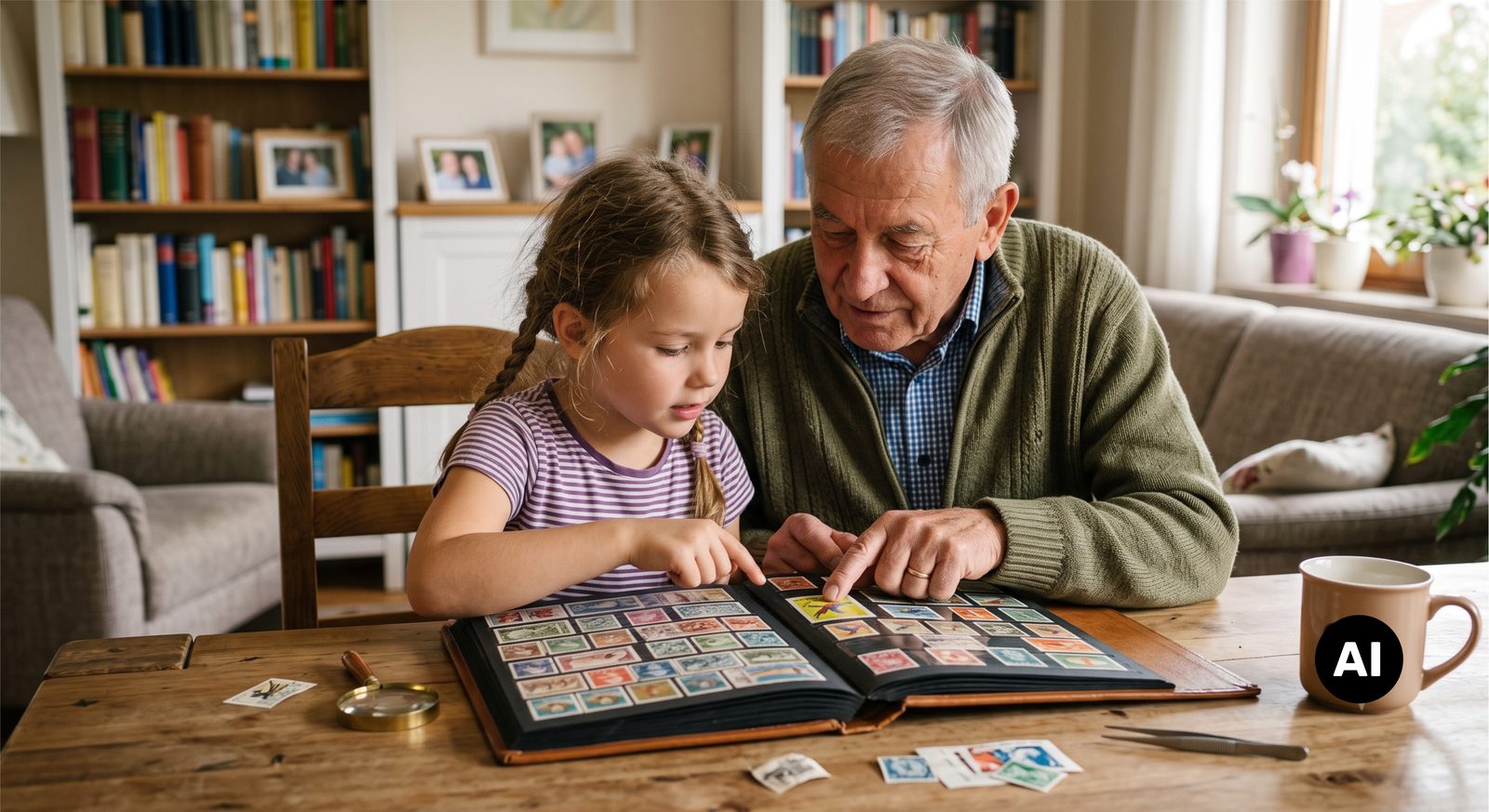
Döstädning combines the Swedish words for "death" and "cleaning". The term became known through a book by the Swedish artist Margareta Magnusson. In English it was published as The Gentle Art of Swedish Death Cleaning. Six ideas from the book matter in practice:
- You decide while you can. Otherwise others decide later. They often do so under time pressure and without knowing what mattered to you.
- Start big, leave memories for last. Magnusson advises starting with big items. That includes big groups such as furniture and clothing. Photos and letters hold you up at the start. You end up remembering instead of sorting.
- One guiding question. In her words: "Will anyone I know be happier if I save this?" If not, it can go.
- Give things away while you are alive. What someone would like to have, you hand over in person, while you can both enjoy it. Magnusson suggests talking about it openly with your family.
- The throw-away box. This is a box about the size of a shoebox. It holds things that only mean something to you, such as old letters. You label it. That way your family can dispose of it later without opening it.
- Leave no burden behind. That includes things that could hurt or embarrass your loved ones. It also includes your digital life: accounts, logins, photos on devices.
There is no minimum age. Plan in weeks and months, not in one weekend.
Preparation: talk to your family (30 minutes)
Before you click anything, talk to the people who would one day be affected. Who would like something in particular? Note names and items. You will need them in step 4. What does nobody want? It is often more than you think. And who should know later what there is? You will invite this small circle in step 8.
Then fix the order. First the cellar, attic and garage. Then the wardrobe, kitchen and living areas. Photos and letters come right at the end.
Step 1: Set up Order & Legacy
OWNAMIC has its own edition for this method: Order & Legacy. New accounts choose it when they first start. Existing accounts switch through the edition button in the header (OWNAMIC editions).
- When you first start, choose Create the structure first, then add items and then Create my structure. Later you will find the same route via Plus → Template.
- In the template wizard, the Order & Legacy template is already selected. Keep Home ticked as well. Tap Next.
- For Order & Legacy, pick one of the suggestions under Name, such as "Order & Legacy", "Letting go" or "Clearing the flat". Under What goes in it? you will see the three collections Keep, Sell or give away and Discard. Leave them as they are.
- For Home, use Add your own to add what is missing: Cellar, Attic, hallway, storage room. The template already comes with Living Room, Kitchen, Bedroom, Bathroom, Garage and Garden.
- Create Structure.
Important: do not add rooms under "Order & Legacy". That holds even though the input field there suggests "e.g. Attic". OWNAMIC does not offer anything below the three piles for sorting. Rooms belong in your home.
Your start page now shows the three piles, each at 0. In the sidebar, under Order & Legacy, you will find four pages: Sort, Order & Legacy collections, What matters to me and Shared spaces.
The help section has a video of exactly this routine. You will find it on the German help page on the letting-go balance (Loslassen-Bilanz). It is called "Ordnung & Vorsorge mit OWNAMIC" and runs just over three minutes. It shows setting up, sorting and passing on, using a wardrobe as the example. The video is in German.
Step 2: Start in the cellar and record the big items
You can only sort what you have recorded. Start where few memories hang and a lot of space is freed up.
- Tap Plus and Photo/Video.
- For a whole room, use Video capture. You make one slow pan across the cellar. OWNY analyses the first 30 seconds and takes up to 24 frames from them.
- For shelves and boxes, use a Photo series. That is up to five pictures with many objects. One photo per shelf is enough.
- Do you want to look more closely at one thing, such as an old piece of furniture? Then use Detail shots from several sides.
- Tap Analyze. OWNY lists the finds. Delete what does not fit and correct the names.
- In the finds, tap the row that names the destination. Choose the Cellar room. If there is no suitable place, create one with New collection, for example "Cellar shelf left". Confirm with Create & Link.
- Save.
You do not have to record every screw. A box called "Small tool parts" as one object is enough.
Cost: manual entries are free. Recognised objects use AI credit. That is one point per object, five with market research. For things that are leaving anyway, recording them without market research is often enough. The pricing page shows how much credit your plan includes.
Try it now
Free for 14 days, no payment details. All you need is your email address.
Registration is subject to our Terms and Conditions and Privacy Notice.
Step 3: Sort one thing at a time
The Order & Legacy start page now shows a card: Next up in Cellar. Below it you see a photo and the name. It also says how many things are still open. If a thing already has an estimate, it appears under the photo. That helps with the question of whether selling is worth it.
- On a computer you decide with Keep, Sell or give away or Discard.
- On a phone you swipe. Left means keep. Up means sell or give away. Right means discard. Decide with buttons switches to the buttons.
- Not sure yet, later moves a thing to the back. Nothing is saved for it.
The Sort page shows the same card. It adds the question Which collection are you sorting out? Below it you see every room and collection that still has open things. When a room is done, mark it with Mark collection as finished.
Two things are worth knowing:
- Nothing leaves its place. A decision links the thing to one of the three piles in addition. The toolbox stays in the cellar. But it is also listed under "Sell or give away".
- You can undo decisions. Under Order & Legacy collections, every thing has Take the decision back next to it.
Ask Magnusson's question for every thing: will anyone be happier if I keep this? And be strict with "Not sure yet". A few pieces may wait, half a cellar may not. One room per weekend is a good pace.
Step 4: Record who something is meant for
Below the sorting card is the field Intended for. This is where you enter the name from your family conversation, for example "Lena". OWNAMIC saves it as soon as you leave the field. For the next thing, it offers the names you have already used.
- For things under Sell or give away, the start page then shows already promised. That way you can see what has a taker and what does not yet.
- You will find the same field on the object, on the Audio Messages sub-page. There it asks Who should have it, use it or look after it?
- On the object, the field carries the line A personal wish, not a will. It means exactly that.
What someone would like now, you pass on now. Open the Order & Legacy collections page. There, every thing in the "Sell or give away" pile has the button Transfer to someone. You enter the person's email address. You then get a link that you send yourself. OWNAMIC never writes to anyone on its own. Only when the person accepts does the thing change hands. Its images, files, events and valuations go with it. An accepted transfer cannot be undone. Until then, the request is shown as pending on the object.
Step 5: Sell, give away, discard and record it
Open Order & Legacy collections. The page shows the three piles. Above them is the Letting-go balance.
Sell or give away. Next to every thing there are Sold, Gifted, Donated and Transfer to someone. This is how you record a sale:
- Enter the price and tap Next.
- The date is set to today. Tap Save and Done.
The row then reads "✓ Sold" with the date.
Discard. Next to every thing there is Discarded. Above the pile, Add pick-up date creates an appointment. That could be a bulky waste collection or a trip to the recycling centre. In Germany this is the Wertstoffhof, the town's drop-off site for bulky items, electrical waste and other rubbish. The start page then shows the date under the pile. Your local authority helps with the disposal itself. In Germany, for example:
- Electrical appliances do not belong in household waste. Municipal collection points take them free of charge. Large retailers take back small devices under 25 cm, even if you buy nothing new. The German Electrical and Electronic Equipment Act (ElektroG) sets this out.
- Wearable clothing goes into the used-clothes collection. Heavily soiled or broken textiles still belong in household waste. That is the advice of the Hamburg consumer advice centre (Verbraucherzentrale Hamburg).
- Bulky waste (Sperrmüll) is collected by many local authorities, sometimes for a fee.
The letting-go balance counts what has already gone. It shows Let go in total and split into Sold, Gifted, Donated and Disposed. It adds the Total proceeds of the sales. If a sale has no price, an asterisk appears next to the proceeds. The real proceeds are then at least that high. The balance is calculated from your entries, not from your bank account. It shows that something is moving, even when the cellar still looks full.
Step 6: What stays gets a story
The three piles sort what goes. For what stays there is the page What matters to me. It lists everything in Keep.
- Open What matters to me. At the top it says how many things already have a story, for example "3 of 12 with a story".
- Choose the filter Without a story.
- Under Its story, write two or three sentences. Where does it come from, from whom, for what occasion? What does it mean to you?
- Enter a name under Intended for if you have one.
- Save.
Not every thing needs a story. It is about the twenty or thirty pieces you would miss. It would hurt you to see them in a skip.
Some things are easier to tell than to write. Open the object and go to the Audio Messages sub-page. Tap Record Audio. Thirty seconds of your voice often say more than a paragraph. Do you want to keep a dated memory? That could be the party at which you got the gift. Then use Add Event on the object to create a Special Event. Attach a photo to it.
Step 7: Photos, letters and the throw-away box come last
The cellar, the cupboards and the living areas are done. Now it is time for the memories. They take longest and stir up the most. That is why they come at the end.
Photos and letters. Magnusson suggests thinning out photos. You digitise the important ones and give the prints to your family. In OWNAMIC you record an album or a bundle of letters as one object, for example "Photo album Italy 1978". On the object, use Upload File to add a few scans. If the suggested type is wrong, correct it with Change type, for example to Object Image. Under Description, write who is in the pictures. That knowledge is often the first to disappear. OWNAMIC does not replace a photo archive. Hundreds of pictures belong on a storage device your family knows about.
The throw-away box. Its contents are private. They do not belong in an inventory. Record only the box itself:
- Tap Plus → Manual.
- Enter the name "Throw-away box".
- Add a photo of the labelled box and note where it is kept.
- Sort it into Keep.
- Under Its story, write for example: "After my death, please dispose of this unopened."
That way your family knows the box exists and where it is. They also know what you would like. Nobody has to look inside.
Step 8: Involve your family
What you have recorded is only useful if it reaches the right people. Two routes complement each other.
A shared space for the small circle. Your family can already see what there is during your lifetime.
- In the sidebar, choose Shared Spaces, then New space.
- Under Name, enter something like "Order & Legacy for my loved ones". Switch on Share “Intended for” and Share voice messages if your family should see both. Tap Continue.
- With Collection you add collections, such as "Keep" and the rooms. Tap Continue.
- Enter an email address and tap Invite. Then tap Copy message and send it yourself. OWNAMIC does not send emails.
- Done, then Go to space.
Contributed objects remain yours. Members can only read. Documents, receipts and the object history are never shown in a shared space. A space holds at most five people, including you. Invitations expire after 14 days. How families use such a space is described in Sharing is Caring. The same goes for communities of heirs, meaning several people who inherit together.
The collection file for printing. A shared space shows the picture and the description. If you share them, it also shows voice messages and "Intended for". It does not show the story from "What matters to me". That is in the collection file:
- Open the Keep collection.
- Export → This object and all descendants → Export as PDF.
- Choose Collection file as the type.
The file starts with a cover page. It names every piece and what is still missing for each. Then each piece follows with its story and "Intended for". It carries the notice that it is not a will. Do you also want the photos and receipts? Then create a ZIP under My documents → New export. Under Report type, choose Collection file. Print the file. Keep it with your papers, where your family will find it.
Common stumbling blocks
- Starting with the photos. Three hours later you are sitting in front of an album and nothing is sorted.
- Trying to record everything. Döstädning does not need a complete inventory.
- Keeping things for others who do not want them. Ask, rather than thinking "someone might need it one day".
What OWNAMIC does not do here
- OWNAMIC does not decide for you. OWNY recognises what is in a photo. Whether you keep it or let it go is not in any photo.
- OWNAMIC does not replace a will. "Intended for" is a wish. In Germany, for example, you must write and sign a handwritten will entirely in your own hand (Section 2247 of the German Civil Code, BGB).
- OWNAMIC does not sell anything. It records what was sold and for how much. You organise the selling platform and the collection yourself.
- An AI estimate is not an appraisal. For jewellery, art and antiques, it is worth having an expert look before you sell.
- OWNAMIC does not manage passwords or your digital estate. You arrange logins and accounts separately.
Checklist to take with you
- Talked to your family: who wants what, what does nobody want?
- Order of rooms fixed, photos and letters put at the end
- Order & Legacy edition chosen, "Order & Legacy" and "Home" templates set up
- Cellar, attic and storage room added to your home, not under the three piles
- Cellar recorded by video capture and photo series
- Sorted one thing at a time, "Not sure yet" used sparingly
- Names entered under "Intended for", promised things handed over or transferred
- Sales, gifts, donations and disposals recorded, pick-up date set
- The most important pieces in "What matters to me" given a story, some with a voice message
- Photos thinned out, albums recorded with a description, throw-away box labelled and noted
- Shared space created and people invited
- Collection file created as a PDF and kept with your papers
Read on: Döstädning · Why Letting Go Is So Hard · Declutter for winter · Let go with a clear conscience · Record who is meant to get what
Try it now
Free for 14 days, no payment details. All you need is your email address.
Registration is subject to our Terms and Conditions and Privacy Notice.
Sources
- Margareta Magnusson: The Gentle Art of Swedish Death Cleaning (2017), the author's book page: https://www.margaretamagnusson.com/books/swedish-death-cleaning
- Wikipedia: Schwedische Todesreinigung (term, book, reception; German): https://de.wikipedia.org/wiki/Schwedische_Todesreinigung
- Scripps News: Swedish death cleaning – start with big items and clothing, not photos: https://www.wmar2news.com/swedish-death-cleaning-declutter-your-life/
- Shelf Awareness: book review (digitise photos and letters, give the prints to family): https://www.shelf-awareness.com/readers/2018-02-06/the_gentle_art_of_swedish_death_cleaning:_how_to_free_yourself_and_your_family_from_a_lifetime_of_clutter.html
- SuperSummary: summary of the book (throw-away box): https://www.supersummary.com/the-gentle-art-of-swedish-death-cleaning/summary/
- Fox News: Swedish death cleaning (the question "Will anyone be happier if I save this?"): https://www.foxnews.com/lifestyle/swedish-death-cleaning-is-the-morbid-new-decluttering-trend.amp
- Verbraucherzentrale Hamburg: confusion about the separate collection duty for used clothing (German): https://www.vzhh.de/presse/verwirrung-um-getrenntsammlungspflicht-fuer-altkleider
- Stiftung Warentest: FAQ on electrical waste – how to dispose of old appliances correctly (German): https://www.test.de/FAQ-Elektroschrott-So-entsorgen-Sie-alte-Elektrogeraete-korrekt-5074797-0/
- Section 2247 of the German Civil Code (BGB), handwritten will (German): https://www.gesetze-im-internet.de/bgb/__2247.html
Rules for bulky waste, used clothing and electrical appliances differ between local authorities and countries. The information from your local waste service is what counts.